


How to move installed programs to another partition or USB drive
Ever wanted to move some (already installed) programs from a partition to another without uninstalling and re-installing? The reason is simple, starting with keeping the programs with yourself all the time (on a flash drive for example, external hdd), or simply move them from your SSD to Hard Disk. Well, there is a simple solution for this. I have the following configuration:
- Partition C is an INTEL SSD
- Partition F,G two separate HDD’s.

I wanted to move originally installed Adobe from C (SSD) to G (HDD). You can accomplish that by running a CMD prompt in elevated mode (type cmd in your start menu and right click on the cmd -> Run As Administrator).
Ok, now you can start moving the desired directory (in my case from c:\Program Files) to the new location (which is g:\Program Files) . Select the directory, CTRL+X on the source and CTRL+V on destination. Now, get back to the previously opened command prompt and type mklink /J “C:\Program Files\Adobe” “G:\Program Files\Adobe”
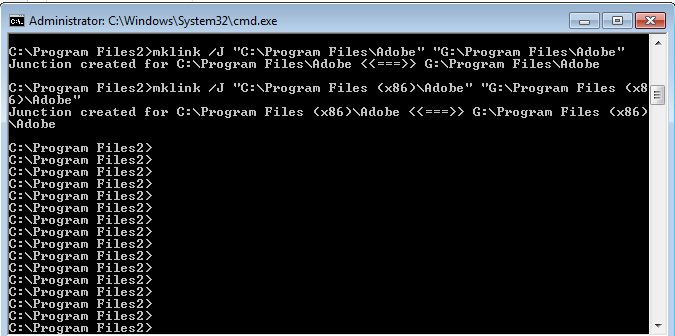
Please be aware that you have to keep the quotes. With this command, you will create a Junction Link for C:\Program Files\Adobe so that it will not break any program links while physically everything is stored in G:\Program Files\Adobe


No comments:
Post a Comment